Some links below are affiliate links. If you buy through them we may earn a commission at no extra cost to you. We only list tools we would use ourselves. How we make money.
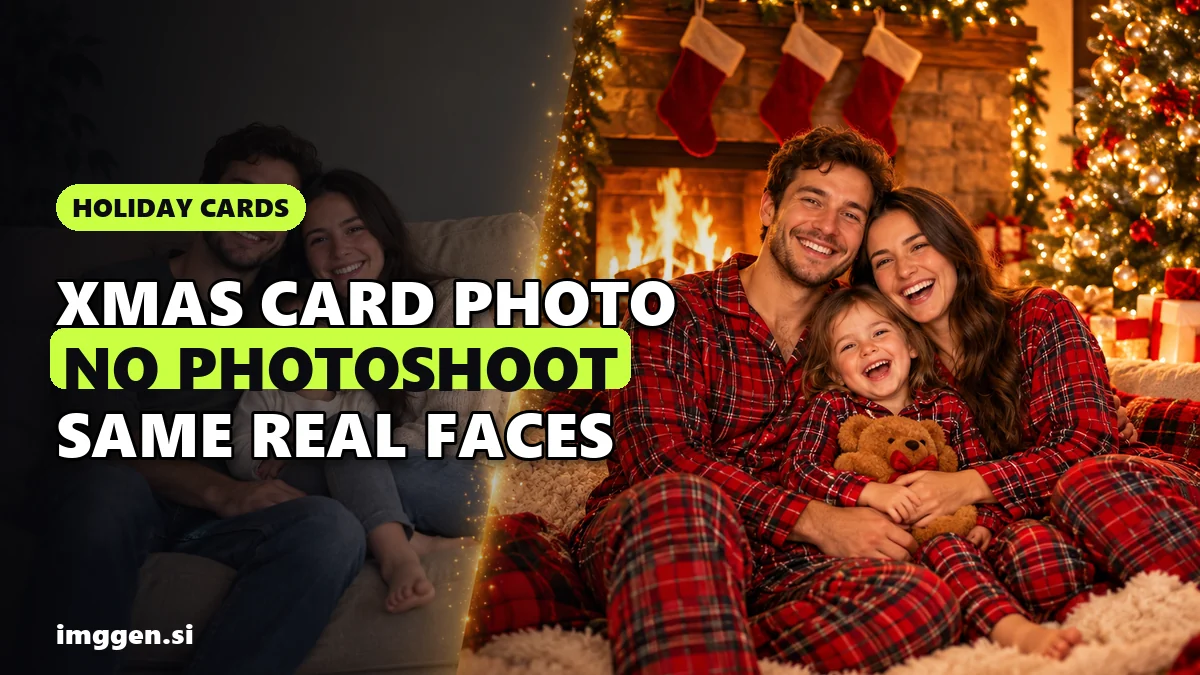
The safest way to make an AI Christmas family photo is to start from a real photo of your family and let an AI image editor change everything except your faces: the background, the outfits, the light, the snow. Ask a generator to invent "a happy family of four by the fireplace" and you get four convincing strangers. Upload a sharp photo of your own people and tell the editor "keep every face exactly as it is", and you get a Christmas card photo that still looks like you, without booking a photoshoot or ironing four sets of matching sweaters.
Below: five copy-paste prompts (cozy fireplace, snowy cabin, matching pajamas, 90s VHS Christmas, pet in a Santa hat), how to check that nobody's face drifted, print resolution, privacy for kids' photos, and how to turn the card into a short video greeting.
When do you need to order Christmas cards in 2026?
Earlier than most people think, because there are two deadlines stacked on top of each other: the printer has to ship the cards to you, and then you have to mail them.
- Mailing deadline: USPS recommends sending First-Class Mail and Ground Advantage by Thursday, December 17, 2026 for delivery before Christmas within the contiguous U.S. (Priority Mail by December 18, Priority Mail Express by December 19).
- Printing deadline: Shutterfly's 2026 holiday guide lists order-by dates for delivery to you by the holidays: Economy and Standard by Wednesday 12/16, Expedited by Friday 12/18, Rush by Saturday 12/19 and Super Rush by Monday 12/21. Those dates get the cards to your door, not to your relatives' mailboxes.
Work backwards: cards that arrive around mid-December leave only a few days to address and post them. A calmer plan is to finish the image in early or mid-November and order before Thanksgiving week. Other printers have their own cutoffs, and Shutterfly says to check your cart for the most accurate delivery estimate.
Which photo should you start with?
The AI can change the room, the clothes and the lighting. It cannot rescue faces that were blurry, tiny or half-hidden to begin with. Pick your base photo with these rules:
- Faces big and sharp. A group shot where each face is a few dozen pixels wide gives the editor almost nothing to preserve, so it guesses. Fill the frame with people.
- Everyone looking roughly at the camera, eyes open. You can change a background easily; you cannot reliably fix a sneeze.
- Even, soft light. Window light or an overcast day beats harsh noon sun. The fireplace glow gets added later.
- Original file, not a screenshot. Use the full-size photo from your phone or camera, not a copy downloaded from social media, which is usually compressed.
- A simple pose you would actually want on the card. Prompts can change the scene around people; asking them to rearrange who sits where is where faces and hands start to break.
Then pick one editor that takes an image plus a text instruction. ImagineArt's AI Image Editor works exactly this way: you upload a JPG, PNG or WEBP up to 30MB and describe the change in plain words. Its own instructions recommend saying what must stay the same, like "keep her face and pose unchanged", and making one change per prompt, which is the whole method in one sentence.
5 copy-paste prompts for an AI Christmas card photo
Each prompt below is written as an edit of your uploaded photo, not a fresh generation. Paste it, swap the bracketed parts, run it two or three times and keep the best version. The first sentence in each one protects your family; do not delete it.
1. Cozy fireplace
Keep every person's face, hair, skin tone, expression and pose exactly as in the original photo. Replace the background with a cozy living room at Christmas: a stone fireplace with a crackling fire, stockings hanging on the mantel, a decorated tree with warm white lights on the left, soft golden light falling on the family from the fire. Natural photo, shallow depth of field, no text.2. Snowy cabin
Keep all faces, expressions and poses unchanged. Place the family outdoors in front of a wooden log cabin covered in fresh snow, warm light glowing from the windows, pine trees dusted with snow, gentle snowfall, late afternoon blue hour. Change their clothing to [knit sweaters and wool scarves in red, cream and green]. Realistic winter photo, soft light on faces.3. Matching Christmas pajamas
Keep each person's face, hair and pose exactly as they are. Change everyone's clothes to matching [red and white plaid] Christmas pajamas, including the kids. Background: a living room on Christmas morning with a lit tree, wrapped presents on the floor and mugs of hot cocoa on the table. Bright, cheerful, natural morning light, candid family photo.4. Vintage 90s VHS Christmas
Keep all faces and poses recognisable and unchanged. Restyle the photo as a still frame from a 1990s home video on Christmas morning: wood-panelled living room, tinsel tree with big multicoloured bulbs, slightly washed-out colours, soft VHS blur, scan lines, light colour bleeding, an on-screen date stamp in the corner reading "DEC 25 1996". Nostalgic, warm, slightly grainy.Here a little blur is the point, and it hides small AI artefacts well.
5. Pet in a Santa hat
Keep the [dog/cat]'s face, fur colour, markings and eye colour exactly as in the photo. Add a small red velvet Santa hat with white trim sitting naturally on its head, and a red plaid scarf around its neck. Background: softly blurred Christmas tree lights in warm bokeh. Realistic pet portrait, sharp focus on the eyes.Pets are a forgiving first test: if you are new to AI editing, run prompt 5 first to learn how the editor behaves before you try it on four human faces.
Want to adjust the wording, lighting or camera style without starting from scratch? Our free prompt studio lets you build and tweak prompts before you paste them into any tool.
How do you keep everyone's face accurate?
Honest answer first: AI editors can and do alter faces. Even when you ask them not to, an edit can smooth a child's freckles, change eye shape slightly, whiten teeth, age or de-age someone, or blend two siblings' features together. Grandma will notice. Here is how to keep the risk low:
- Edit, do not generate. Always start from your real photo. A text-only prompt describing your family will produce new people, every time.
- Name what must not change at the start of every prompt: faces, hair, skin tone, expressions, poses. Then describe the change.
- One change per pass. Background first, then clothes, then lighting. Each pass is a new chance for drift, so stop as soon as it looks right.
- Compare at 100% zoom, face by face, against the original. Check eyes, teeth, ears, glasses and hands (finger counts still go wrong).
- Patch instead of re-rolling forever. If the scene is perfect but one face drifted, use a layer-based photo editor to paste that person's original face back over the result, or run the edit again.
- Upscale gently. Some upscalers invent detail (more on that below), which can quietly change a face at the very last step.
To keep one person's look across many images, see our guide to keeping the same face in every AI image.
Reality check. Expect a few failed attempts per photo. Some results will look slightly plastic, a child may come out looking older, and group photos with five or more people are noticeably harder than a couple or a single pet. Credit-based tools charge for every attempt, so check the current price before you start. If a face will not come out right after several tries, a real photo with only the background changed is still a lovely card. None of this matches a professional photographer for true likeness; what it replaces is the sweater-ironing and the session fee.
How to put the photo on a card that prints sharp
Once you have your image, you need a layout with a greeting, your family name and the year. Fotor's Christmas card maker offers free, printable Christmas card templates, including family photo and photo collage layouts. You drag your own photo onto the template, edit the text, and then download it as a high-resolution image or a printable PDF, or send it as an e-card. The same editor has the usual photo tools: filters, frames, exposure fixes and background removal.
Resolution: how many pixels do you need?
A common print rule of thumb is 300 pixels per inch. For a 5x7 inch flat card that works out to 1500 x 2100 pixels; for a 4x8 inch card, 1200 x 2400. Many AI editors export images smaller than that, especially after you crop to the card shape. Shutterfly does not publish a pixel number per product; instead its system shows a low-resolution warning when an image may not meet the minimum for quality printing, and its help page notes that cropping reduces resolution. If you see that warning, do not ignore it.
Upscaling for print without changing faces
This is where an upscaler earns its place. Magnific, the upscaler Freepik's AI suite is now named after, offers two approaches that matter here. According to Magnific's own documentation, its Creative upscaler "adds or infers new detail" and supports 2x, 4x, 8x and 16x enlargement, while Precision focuses on faithful upscaling that preserves the original content without inventing new elements. For a family photo, start with the faithful option or the lowest creativity setting, because invented detail on a face is exactly what you are trying to avoid. Creative mode is fine for a snowy background or a stylised card.
Order matters: edit, crop to the card shape, upscale, then place it on the template.
Is it safe to upload photos of your kids to AI tools?
It depends on the tool, and the only reliable answer is in each company's privacy policy. Read it before you upload. Two examples of what to look for:
| What to check | ImagineArt (privacy policy, updated September 8, 2026) | Fotor (privacy policy) |
|---|---|---|
| Used to train AI? | Says it does not use your prompts, uploaded files or generated content to train or improve any AI model | Says Face Data is used only to provide its AI Avatar features and is not used to train other AI products |
| Shared with others? | Your prompt and reference files are sent to the third-party provider of the AI model you choose | Says Face Data is not shared with or sold to advertising platforms, analytics providers or data brokers |
| Age rules | Service is not directed to children under 13 | Users under 18 should read the terms with a parent or guardian and use the service only after the guardian agrees |
| Deletion | Account and data deletion from the dashboard or via support, with some legal exceptions | See the user rights section of the policy |
Practical habits that reduce risk whatever tool you use:
- You, the parent, upload the photo from your own account. Children should not be the account holders.
- Crop out anything identifying that you do not need: school logos, house numbers, street signs, car plates.
- Remove location data from the photo before uploading (most phones let you turn off location when sharing).
- Delete the uploads and generations from the tool when the card is done, and delete the account if you will not use it again.
- If you post the card publicly, it becomes a public photo of your kids. Many families mail the printed card and share the image only in private chats.
How to turn your card into an animated video greeting
For relatives abroad, or the family group chat, a few seconds of moving card often gets more replies than the print. Image-to-video tools take your finished still and add motion: falling snow, a flickering fire, twinkling lights, a slow camera push-in, a small wave or smile.
Higgsfield's Image to Video tool is built for this: it animates a single photo, lets you add camera motion and direct the action with a prompt, and exports up to 4K. Its generator currently shows models such as Seedance 2.0 with an 8-second default length; check what your plan includes before you start. Partner offer: arriving through our link gets you up to 50% off for 3 hours. ImagineArt also has image-to-video in the same app as its editor if you prefer to keep one account.
A prompt that suits family scenes:
Gentle, slow motion. Snow falls softly outside the window, the fire flickers, tree lights twinkle. The family smiles and the youngest child waves at the camera. Slow camera push-in. Keep all faces exactly as in the image, natural movement, no morphing, no text.Keep the motion small: hugging, turning heads and walking are where video models distort faces most. Watch the clip through before sending it, and add your greeting text in a video editor afterwards.
Looking for other tools for any of these steps? Browse our AI tool directory.
FAQ
Can AI make a Christmas card photo from my own family photo?
Yes. Upload a real photo to an AI image editor and ask it to change the background, clothes or lighting while keeping faces unchanged. Starting from your photo keeps your family recognisable; generating from text alone creates strangers.
Will AI change my family's faces?
It can. Editors sometimes smooth, age or reshape faces even when told not to. Make one change per pass, compare each face at full zoom with the original, and redo or patch any face that drifted.
What resolution do I need to print a 5x7 Christmas card?
A common rule of thumb is 300 pixels per inch, which is 1500 x 2100 pixels for 5x7. If your print service shows a low-resolution warning, upscale with a faithful mode before ordering.
When should I order Christmas cards in 2026?
Before Thanksgiving week is the calm option. USPS recommends mailing First-Class cards by December 17, 2026, and Shutterfly's Economy order-by date is December 12 for delivery to you, which leaves little time to mail them.
Is it safe to upload my kids' photos to AI apps?
Read each tool's privacy policy first: check whether uploads are used for training, who they are shared with and how to delete them. Upload from your own account, crop identifying details and delete files when done.
Sources
- USPS: 2026 Holiday Shipping Deadlines
- Shutterfly: Last-Minute Holiday Shipping Guide for Cards & Gifts (2026)
- Shutterfly Support: Maximizing photo resolution
- ImagineArt: Free AI Image Editor
- ImagineArt Privacy Policy
- Fotor: Free, Printable Christmas Card Templates
- Fotor Privacy Policy
- Magnific Docs: Upscaler Creative
- Magnific Docs: Upscaler Precision
- Higgsfield: Image to Video AI