Some links below are affiliate links. If you buy through them we may earn a commission at no extra cost to you. We only list tools we would use ourselves. How we make money.
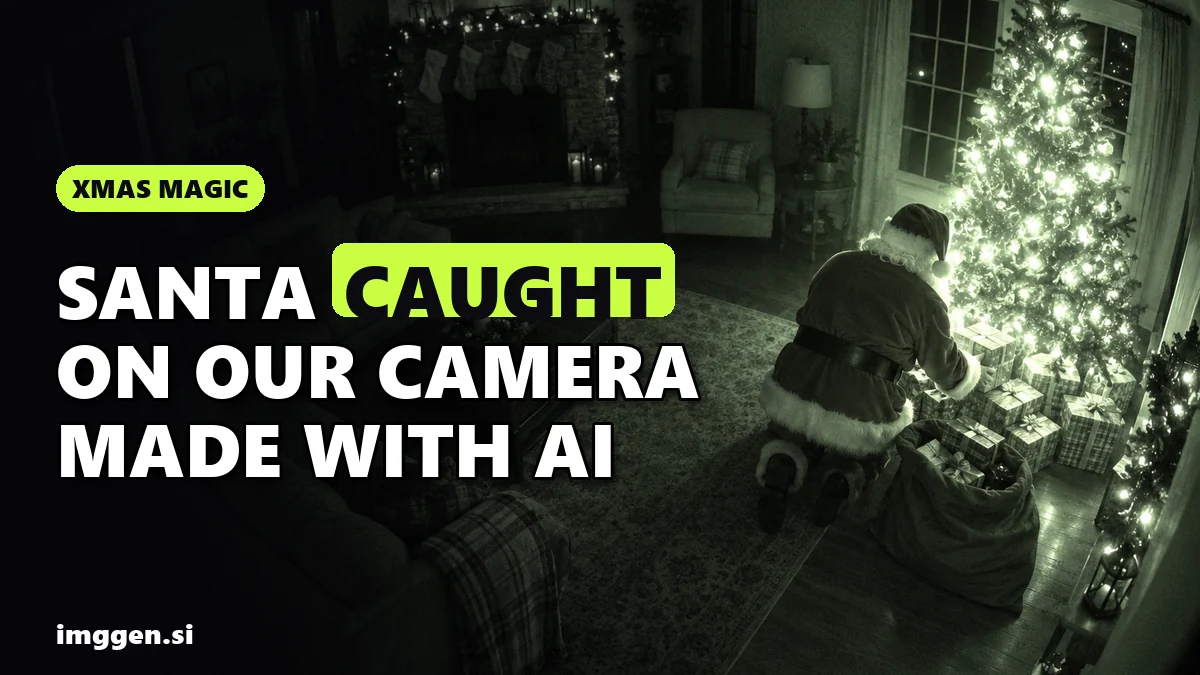
To make an AI Santa video in your house, photograph your own living room at night from a high corner, the way a security camera sees it, then upload that photo to an image-to-video model and describe the motion: Santa, seen from behind, tiptoeing to the tree and leaving presents, in grainy night-vision footage. The model keeps your real room and adds Santa, so the clip looks like your own camera caught him. No child needs to be in the picture.
For a personal Santa message for kids, you start from a cosy fireplace still and ask for Santa talking to the camera, or you use a dedicated personalised Santa video service that already knows how to say your child's name. Below: the step-by-step method, four copy-paste prompts (living room cam, tree delivery, reindeer on the roof, Santa message), which tool fits which step, what is free, how long it really takes, and the parts parents should not skip: kids' faces, voices and what you post.
Which kind of AI Santa video do you want?
Three different things hide behind the search "ai santa video", and they need different tools.
| Type | What the child sees | Best route |
|---|---|---|
| Santa caught on camera | A grainy home-camera clip of Santa in your own living room, by the tree or on the roof | Photo of your room + an image-to-video model |
| Personal Santa message | Santa by a fireplace, speaking to the camera | Image-to-video model with sound, or a voiceover added afterwards |
| Personalised Santa video service | A ready-made story where Santa uses your child's name and details | A dedicated service such as Portable North Pole |
The caught-on-camera clip is what most parents mean when they search "santa caught on camera ai". It is also the easiest one to get right, because Santa is small, far from the lens and seen from behind. That hides most of what AI video still gets wrong: hands, faces and lip movement.
How to make an AI Santa video in your house, step by step
1. Shoot the empty room like a security camera
Wait until evening, switch on the tree lights and one lamp, and hold your phone high in a corner of the room, pointing slightly down. That angle is what sells the security-camera look. Keep the tree, the fireplace or the spot where presents go in the frame, and leave space beside the tree where Santa can kneel. No people, no pets, and nothing with your address, a school logo or full names on it.
2. Clean up the still (optional)
If the photo is cluttered, fix it first. Higgsfield's image-to-video page suggests using Nano Banana Pro "to create or fix the start image before you animate it". You can also add Santa into the still at this stage, standing by the tree, which gives the video model a fixed costume and position to animate instead of inventing them. Our AI snow globe photo guide walks through the same edit-your-own-photo approach in more detail.
3. Pick an image-to-video model
This is where an all-in-one platform saves time. Higgsfield puts several video models behind one subscription. Its image-to-video page lists Kling 3.0 for "smooth, directed motion", Seedance 2.5 and Veo 3.1 with native sound, Wan 2.7 for controlled camera moves with sound, and Minimax Hailuo for "lively motion from minimal prompts". For a silent security-cam clip, a motion-focused model is enough. For a Santa message with his voice and a crackling fire, choose one of the models with native sound.
4. Paste a prompt and generate several takes
Use the prompts in the next section. Generate three or four versions of the same prompt before you start rewriting it. Image-to-video results vary a lot between takes, and one of them is usually clearly more believable than the rest.
5. Check the frames like a sceptical eight-year-old
Watch at full screen, then step through the moments when Santa moves. Look for furniture that bends or changes shape, a tree that grows new branches, gifts that appear from nowhere, extra fingers, and a face that melts when Santa turns. If anything looks off, regenerate, or switch to a prompt where he stays turned away.
6. Add the camera details yourself
Video models often garble on-screen text, so don't ask them for a timestamp. Add the date and time (24/12, 23:47, or whatever fits your story), a red REC dot or a label like LIVING ROOM CAM afterwards with any video editor's text tool. If you want a sharper file for the TV, Higgsfield's page says clips can run through its upscaler for 1080p, 2K or 4K.
Copy-paste AI Santa video prompts
Each prompt assumes you uploaded your own room photo as the start frame. Keep the parts that tell the model not to change your room; they matter more than the Santa description. Swap the details in square brackets for your own.
Living room cam (the classic)
Grainy night-vision security camera footage, static high corner angle, keep the room exactly as in the image. Santa Claus in a red suit with white fur trim and a sack over his shoulder tiptoes in from the left edge of the frame, seen from behind, walks to the Christmas tree, pauses, looks around, then quietly carries on. Slight video noise, low frame rate feel, no camera movement, no text.
Tree delivery
Security camera footage at night, fixed wide angle from the ceiling corner, keep the room, furniture and Christmas tree exactly as in the image. Santa Claus kneels beside the tree with his back to the camera and places three wrapped presents [red, green and gold] underneath, one by one, then stands up, adjusts his hat and walks out of frame to the right. Tree lights twinkle softly. Muted colours, slight grain, no camera movement, no text.
Reindeer on the roof
For this one, take the photo outside at dusk from the garden or the street, showing your roof. Crop out the house number. A doorbell-camera look works too.
Outdoor home security camera footage at night, fisheye wide angle, keep the house exactly as in the image. Light snow is falling. A sleigh pulled by reindeer glides down from the night sky and lands gently on the roof, the reindeer stamp and shake their heads, a soft warm glow around the sleigh. Grainy footage, no camera movement, no text, no people visible.
Personal Santa message
Start from a still of a cosy fireplace (your own, or one you build in our free prompt studio) with Santa sitting in an armchair. Use a model with native sound and keep the message short: one or two sentences per clip.
Warm cinematic shot, slow push-in. Santa Claus with a full white beard sits in a leather armchair beside a crackling fireplace, holding a letter. He looks up at the camera, smiles kindly and says in a warm, deep voice: 'Ho ho ho! I got your letter, [first name]. Keep being kind to your little brother, and I will see you on Christmas Eve.' Fire crackles softly, gentle ambient music, no text.
Names are where generated voices tend to stumble. If the name comes out wrong, keep the line generic ("I got your letter") and add the name in a separate voiceover. Higgsfield lists a separate Audio tool for voiceovers and a Lipsync Studio for talking clips. Use a generic Santa voice from the tool's library, never a cloned voice of someone you know (more on that below).
Which AI tool fits each step?
This table is research from the partners' own product pages, not a side-by-side test we ran for this guide.
| Step | Good fit | Why |
|---|---|---|
| Fix or build the start image | Higgsfield (Nano Banana Pro, Soul), ImagineArt | Edit your room photo instead of replacing it |
| Silent caught-on-camera clip | Higgsfield (Kling 3.0, Hailuo), ImagineArt | Directed motion from a single still |
| Santa message with sound | Higgsfield (Seedance 2.5, Veo 3.1, Wan 2.7) | Sound generated with the video |
| Compare models on one balance | getimg.ai | Kling and Veo on a single credit balance |
| Sharper file for the TV | Higgsfield Upscale | 1080p, 2K or 4K, according to its page |
ImagineArt is a good second option if you mainly want one inexpensive app for the still and the clip: it switches between 50+ models, including Kling, Seedance and Hailuo, has image-to-video in the same dashboard, and its plans start at a few dollars a month (check the current price).
Should you use a personalised Santa video service instead?
If you want a story-style video where Santa reads your child's name, age and good deeds from his book, a dedicated service is simpler than prompting. Portable North Pole (PNP) is the best-known one. Its homepage says you can start with a free trial Santa video, usually available until December 19, and that Premium experiences such as longer videos, calls from Santa, live chats and bedtime stories are unlocked one at a time or with a Magic Pass that covers all the kids on your list. It says each experience is built around your child's name, photos and little details, and that stories and conversations can be reviewed and approved by a parent first. The page doesn't list prices, so check them in the app.
There are also one-click "Santa caught on camera" templates. Media.io, for example, has a dedicated Santa caught on camera page that animates an uploaded image with Seedance 2.5; it says free creations are stored for only 7 days.
The trade-off: services are quicker and handle the name for you, but many children get a similar Santa and a similar story. Making it yourself takes longer, but the clip happens in your living room, by your tree, which is the whole point of the caught-on-camera idea.
Keep the magic, protect your kids: faces, voices and posting
You can make a great AI Santa video for kids without a single photo of your kids. A few rules worth keeping:
- Leave children out of the source photo. The caught-on-camera clip doesn't need them, so no child's face goes to an AI service. If a service asks for a child's photo, read its privacy settings first and switch off any option to use uploads for training where one exists.
- Never imitate a real person's voice without consent. That includes grandpa, a teacher or a well-known actor who played Santa. Use the tool's generic voices. The FTC warned in 2023 that a scammer can clone a loved one's voice from a short audio clip taken from content posted online, which is also a good reason not to post long clips of your children talking.
- Keep Santa generic. Don't upload a relative's photo to turn them into Santa unless they agreed and know where the clip will be shown.
- Think before you post. A clip of your living room shows your home. Crop out house numbers, post and anything with names on it. Many families keep these clips in a private family chat rather than on public social media.
- Plan the reveal. Kids grow up and look back at these videos. Treat the clip like the cookie crumbs and the nibbled carrot: part of the game, and something you will happily explain when they ask.
Honest expectations: image-to-video is impressive, not flawless. Expect some takes with warping furniture, odd hands or a face that shifts when Santa turns, and plan to throw those away. Free tries are limited, so a clean, TV-ready clip usually means paying for some credits. A young child will happily believe a slightly wobbly clip; an older sibling may not. Short clips with Santa turned away are the ones that hold up best.
Is an AI Santa video free, and how long does it really take?
Free: you can usually make a first clip without paying. Higgsfield says you can try its image-to-video generator free and generate your first videos before you subscribe, and PNP offers a free trial Santa video. What free use rarely gives you is many retries, every model, or long storage. Paid: credits are what you are really buying, because good clips come from several takes. Check the current price on each platform. Our Higgsfield partner offer is up to 50% off for 3 hours after you arrive through our link, so open it when you are ready to generate, not before.
Time: each image-to-video clip is only a few seconds long, and the generation is the quick part. The photo, the retries and the edit take most of the time, so plan an evening for your first one, not five minutes. A longer Christmas Eve story is simply several short clips edited together: Santa arrives, delivers the gifts, leaves, and the reindeer wait on the roof.
Make it in early December, when there is still time to redo a take, and save the final file somewhere safe before Christmas Eve. Then finish the holiday set with an AI Christmas family photo card or a snow globe photo made from the same evening's pictures. More video and image tools are in our tool directory.
FAQ
How do I make an AI video of Santa in my house?
Photograph your living room at night from a high corner, upload it to an image-to-video tool and prompt Santa walking to the tree, seen from behind, in grainy security-camera style. Generate several takes and keep the most believable one.
Is there a free AI Santa video generator?
You can try several for free: Higgsfield lets you generate your first videos before subscribing, Portable North Pole offers a free trial Santa video, and template sites have Santa cam effects. Free use is limited, so check each tool's terms.
Can an AI Santa video say my child's name?
Yes, with a video model that generates speech, but names are often mispronounced. Keep the line generic and add the name in a separate voiceover, or use a personalised Santa video service built for names.
Is it safe to upload my kids' photos for an AI Santa video?
You don't need to: a Santa caught on camera clip works with an empty room. If a service asks for a child's photo, read its privacy settings first and avoid posting the result publicly.
How long does it take to make an AI Santa video?
The generation itself is quick; the photo, retries and editing take most of the time. Plan an evening for your first clip.