Some links below are affiliate links. If you buy through them we may earn a commission at no extra cost to you. We only list tools we would use ourselves. How we make money.
To make an AI snow globe photo, upload a sharp photo of yourself, your family, your pet or your product to an AI image editor and ask it to place that exact subject inside a glass snow globe, keeping the faces (or the label) unchanged. Editors built on reference-image models such as Google's Nano Banana family do this in one prompt. Text-only generators can't do it, because they invent strangers instead of using your people.
This guide gives you five copy-paste snow globe AI prompts (solo, family, pet, couple and product), the order of steps that keeps faces recognisable, the tools that handle each step well, and the honest part: likeness drift, kids' photos and what you may legally sell.
What is the AI snow globe photo trend?
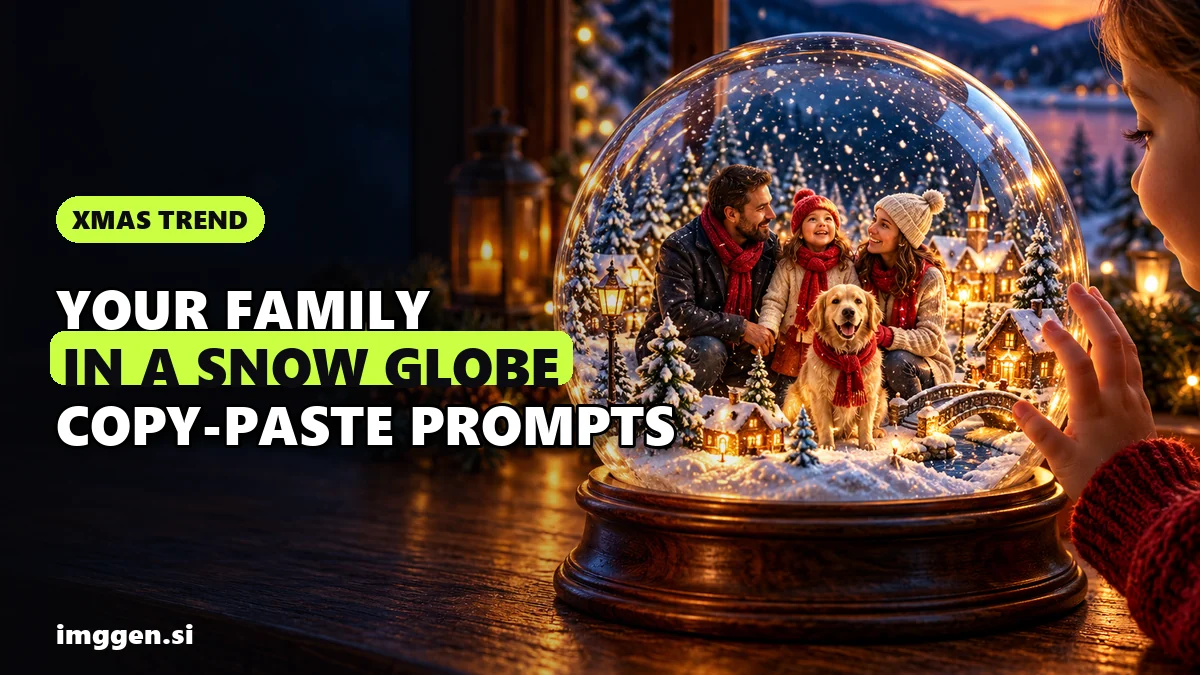
It is a holiday photo format: your real subject, shrunk and placed inside a glass globe with falling snow, a tiny winter scene and a wooden or brass base. It works as a Christmas card, a profile picture, a short "shake the globe" video, or a product teaser for a shop.
The trend is visible mostly through the tools. Several photo apps now ship a dedicated AI Christmas snow globe effect. BeautyPlus has a one-tap snow globe filter that it says works on portraits, full-body photos and pets. Media.io offers a Christmas snow globe effect and credits Google's Nano Banana as the model behind its gallery. Brands have used the idea too: in December 2024 Coca-Cola ran AI snow globes on London's Piccadilly Lights, where people turned their Christmas memories into personalised virtual globes, as DesignRush reported.
What we could not find: independent numbers on how many people make these. Treat "viral" claims on tool pages as marketing. The good news is that you don't need a one-tap filter at all. A general AI image editor and a good prompt give you more control over the result.
Snow globe filter or AI editor with a prompt?
An AI snow globe generator (a one-tap filter) is the fastest route. You upload, wait seconds and get one fixed style. An editor with a prompt takes a few extra minutes, but you choose the scene, the base, the light and the format, and you can fix one detail without starting over.
| Approach | Best for | Trade-off |
|---|---|---|
| One-tap snow globe filter | A quick fun picture for a story or chat | One look for everyone; little control over faces or the scene |
| AI image editor + prompt | Cards, prints, couples, families, pets | You write (or paste) a prompt and check faces yourself |
| Product cut-out + AI background | Shop listings and holiday ads | Best when the product is on a plain base; check reflections |
| Image-to-video model | A short clip with snow swirling in the globe | Faces can shift between frames; costs more credits |
How to make an AI snow globe photo of yourself or your family
1. Pick the right source photo
Inside a snow globe your people become small, so any blur in the original gets worse. Use the full-size original from your phone, not a screenshot, with faces sharp, well lit and looking roughly at the camera. Fewer people works better: one to four faces is the comfortable range.
2. Open an editor that keeps likeness
You want an editor that takes your photo as a reference and changes only what you ask. Google describes its Gemini image editing update as focused on keeping a person's or pet's likeness from one edit to the next, and a growing number of tools run the same model family. ImagineArt's AI image editor, for example, uses Nano Banana Pro as its default model and gives every account 100 free credits a month, which it says is enough for about 10 to 15 edits.
3. Paste a snow globe AI prompt
Start with the prompts below. Make one big change per pass: first the globe, then any outfit or lighting change. Big multi-change prompts are where faces drift.
4. Check every face at full zoom
Compare each face with the original: eye shape, smile, glasses, hairline, freckles. If someone looks like a cousin rather than themselves, regenerate or say exactly what to fix ("keep the face of the man on the left exactly as in the photo").
5. Upscale before you print
Editor exports are often too small for a sharp print. Use a faithful upscaling mode, not a creative one, so faces are not reinvented. Magnific's documentation describes its Precision upscaler as faithful upscaling "without inventing new elements" and suggests starting with 2x to 4x.
Copy-paste snow globe AI prompts
Upload your photo first, then paste one prompt. Replace the parts in brackets.
Solo portrait in a snow globe
Place the person from my photo inside a large glass snow globe as a small figure standing in a snowy miniature village. Keep their face, hairstyle and body shape exactly as in the photo. Soft snowflakes floating in the water, warm glowing windows, polished wooden base, the globe sitting on a windowsill at dusk. Photorealistic, shallow depth of field, cozy Christmas light.Family snow globe for a Christmas card
Put everyone from my photo inside one glass snow globe, standing together in the same arrangement as in the photo, on a snowy hill with a small decorated Christmas tree behind them. Do not change any face, age or expression. Add red and green winter scarves. Gentle falling snow inside the globe, brass base with a blank engraved plate, globe on a mantel next to candles. Photorealistic, vertical 4:5 framing.Pet in a snow globe
Place the [dog/cat] from my photo inside a glass snow globe, sitting on fresh snow next to a tiny wrapped present. Keep its exact fur colour, markings, eye colour and ear shape. Wearing a small red knitted scarf. Snowflakes swirling around it, warm fairy lights reflecting on the curved glass, dark wooden base. Photorealistic, close-up, soft bokeh background.Couple snow globe
Place the two people from my photo inside a glass snow globe, ice skating hand in hand on a tiny frozen pond with snowy pine trees around it. Keep both faces exactly as in the photo. Twinkling lights, snow drifting in the water, vintage silver base, globe held in two gloved hands. Romantic, photorealistic, cinematic evening light.Product snow globe
Place the product from my photo inside a glass snow globe on a small snowy pedestal, upright and centered. Keep the product's shape, colours, label text and logo exactly as in the photo, do not redraw the text. Soft snow floating around it, a few tiny pine trees, clean white wooden base, globe on a light marble surface with soft daylight. Photorealistic e-commerce style, square 1:1.For more scene ideas you can build and save your own prompt in our free prompt studio.
How to make a product snow globe photo for your shop
Products are easier than people in one way (no faces to drift) and harder in another: label text and logos are exactly what image models like to redraw. Two routes work:
- Editor route: use the product prompt above, then zoom in on the label. If any letter changed, do not use the image for a listing.
- Cut-out route: remove the background from a clean product photo, then generate the snow globe scene around it. Photoroom's AI Backgrounds tool generates scenes from a text prompt and matches angle, lighting and shadows to the original photo, and it has a batch mode when you need the same look across a whole catalogue. Your real product pixels stay untouched, which keeps the label honest.
A snow globe works best as a seasonal hero image or ad, not as your main listing photo. Marketplaces generally expect the main image to show the product as it is, so keep a plain photo first and the festive one in the gallery. More on this in our guide to AI product photos that sell.
Can you turn the snow globe photo into a video?
Yes. The natural next step is a short clip where someone gives the globe a gentle shake and the snow swirls. Use your finished still as the start frame in an image-to-video tool and keep the motion small, for example: A hand gently shakes the snow globe once, snowflakes swirl and slowly settle, the figures inside stay still, slow push-in, warm light.
Higgsfield's image-to-video workspace puts several video models side by side (it lists Kling, Veo, Seedance, Wan and Minimax) and says you can generate your first videos before subscribing. Keeping the figures inside still is the trick: the less they move, the less their faces change from frame to frame.
Is it safe and legal? Likeness, kids' photos and commercial use
Likeness
Even the best editors sometimes smooth skin, age someone or slightly change a smile. Google itself notes that subtle flaws matter when the photo shows people you know well. Always compare faces with the original, and ask everyone in the photo before you post it. Only use photos of people who agreed to it.
Kids' photos and privacy
Before you upload children's photos anywhere, read the tool's privacy settings. Google's Gemini privacy hub, for example, says a subset of chats is reviewed by human reviewers and that uploads can be used to improve its services, including training AI models, while the Keep Activity setting is on. Turning it off stops future chats from being used for training, although Google says chats are still kept for 72 hours. Other tools have their own rules, so check before you upload. A sensible routine: use your own account, turn off training where you can, avoid photos showing school logos or your house number, and delete uploads when you are done.
Commercial use
Free plans often limit use. ImagineArt's editor page, for example, says free accounts are for personal use and that commercial use comes with paid plans; check the current price on its site. If you sell snow globe images (custom portraits, shop ads), read the terms of the exact plan you are on, and get written permission from the people or pet owners in the photo. Do not use other brands' logos, famous characters or celebrities in images you sell. Images made in the Gemini app also carry a visible watermark plus an invisible SynthID mark, which matters if you planned to sell them clean.
Reality check. Expect a few tries per good image. The first result often has one off detail: an extra finger, a missing pet marking, a blurry face in the back row or a label with one wrong letter. Small faces inside a globe are the hardest part, which is why the source photo matters more than the prompt. Free credits go quickly once you start regenerating, and a snow globe image is a nice card or post, not a business by itself. If you want to sell custom snow globe portraits, most beginners make few or no sales at first, so test demand with friends and family before you pay for a bigger plan.
What else can you make for the holidays?
If the snow globe was a hit, the same "keep the real faces, change the scene" method works for a full card. See our guide to the AI Christmas family photo for print sizes and mailing deadlines. Shop owners can browse Christmas product photography ideas, and if you want to compare more image tools, start in our tool index.
FAQ
How do I put myself in a snow globe with AI?
Upload a sharp photo to an AI image editor that uses your photo as a reference, then ask it to place you inside a glass snow globe while keeping your face exactly as in the photo. Check the face at full zoom and regenerate if it drifted.
Is there a free AI snow globe generator?
Several apps offer snow globe filters with some free uses, and editors such as ImagineArt include free monthly credits. Free plans are usually limited in resolution and to personal use, so check the terms before printing or selling.
What is the best snow globe AI prompt?
Name the subject from your photo, say where it stands inside the globe, ask to keep faces or labels exactly as in the photo, then add snow, base, light and framing. Make one big change per prompt.
Can I put my pet in a snow globe with AI?
Yes. Use a sharp, well-lit pet photo and tell the editor to keep the fur colour, markings and eye colour. Pets with distinctive markings need a careful check, as models sometimes simplify patterns.
Is it safe to upload my kids' photos to AI snow globe apps?
Read the privacy settings first. Some services may use uploads to improve their models or have human reviewers see them. Turn off training where possible, avoid identifying details and delete uploads afterwards.
Sources
- BeautyPlus: AI Snow Globe Filter
- Media.io: AI Christmas Snow Globe Effect
- DesignRush: Coca-Cola & Ocean Outdoor Bring AI-Powered Virtual Snow Globes to London's Piccadilly Lights
- Google: Image editing in Gemini just got a major upgrade
- Google: Gemini Apps Privacy Hub
- ImagineArt: AI Image Editor
- Magnific Docs: Upscaler Precision
- Photoroom: AI Backgrounds Generator
- Photoroom: Add AI Backgrounds in Bulk
- Higgsfield: Image to Video AI